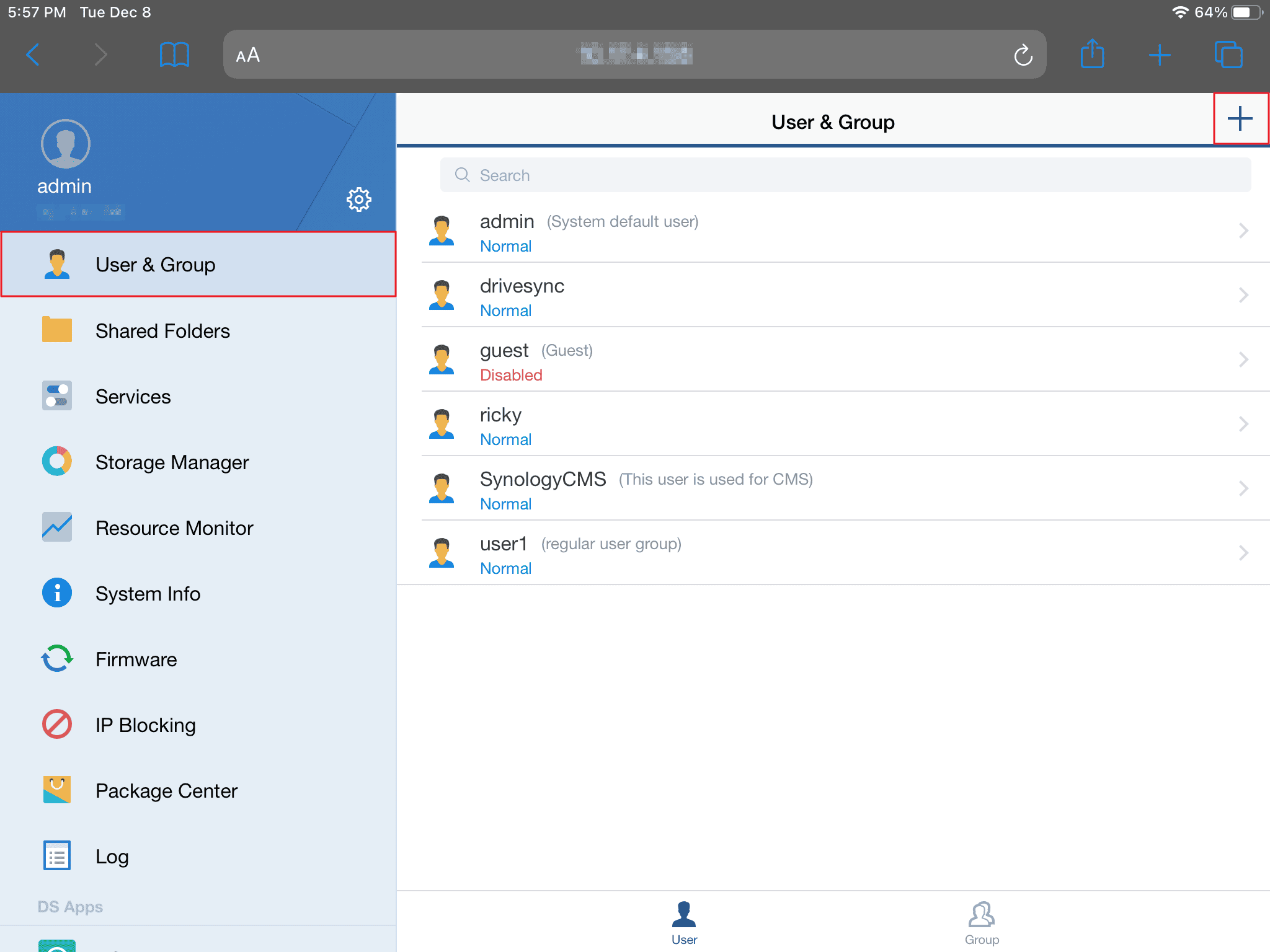
To use a Synology NAS with an iPad Pro, open the Files app, tap ‘Connect to Server’, and enter the Synology server address and user details. Once connected, the NAS will appear under ‘Shared’ in the sidebar for immediate access to shared folders and files. This integration provides an easy way for iPad Pro users to navigate their NAS storage efficiently.
Here are some ways to use a Synology NAS with an iPad Pro:
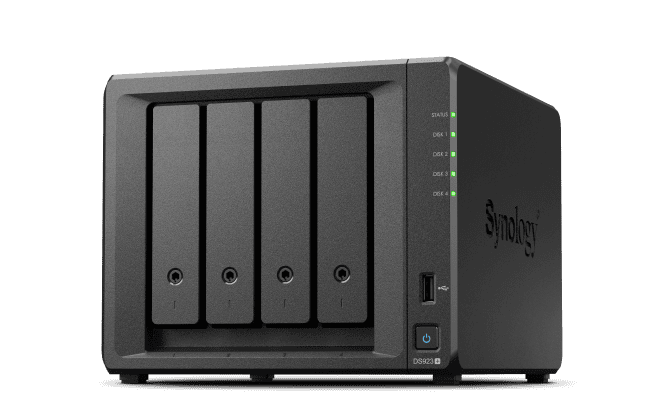
Ways To Connect Your Synology NAS To Your iPad Pro
A Synology NAS serves as a central storage hub for your files, allowing easy access from your iPad Pro. By connecting your Synology NAS to your iPad Pro, you can conveniently access and manage your files. There are several methods to establish this connection, each with its own benefits based on your requirements. Here’s a guide on how to create a seamless connection and maximize this integration for your convenience.
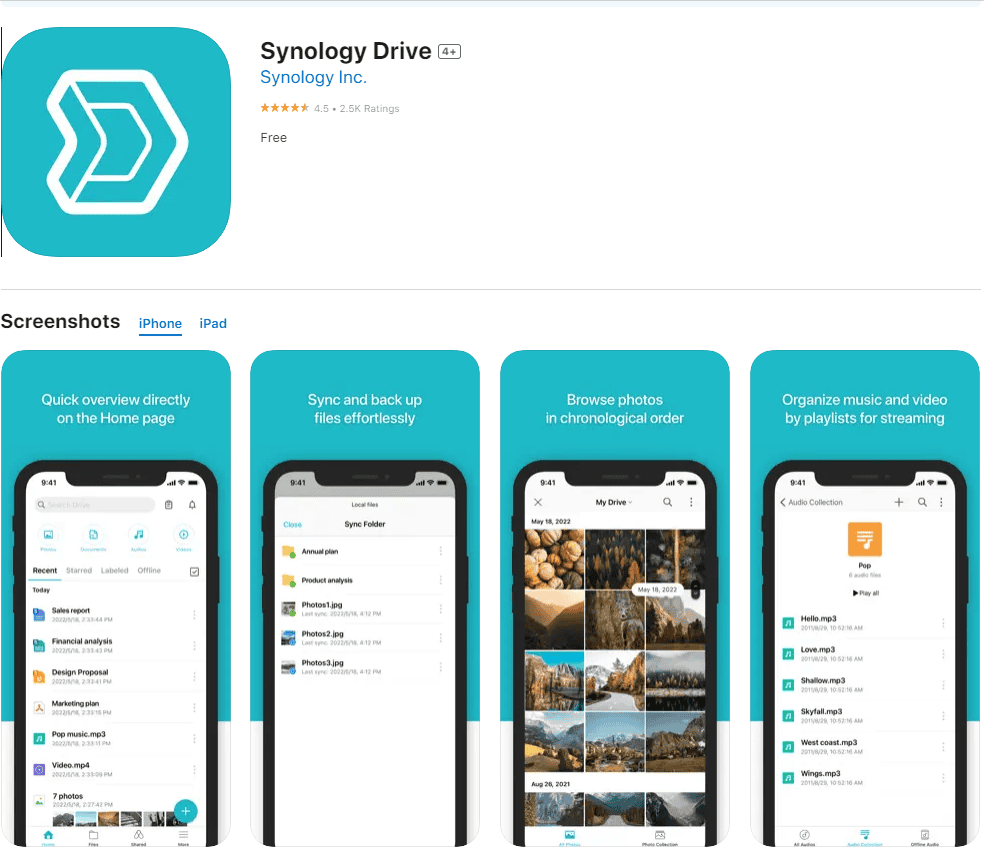
1. Synology Drive App
https://apps.apple.com/us/app/synology-drive/id1267275421
2. Files App Integration
3. WebDAV Access
Important Considerations
With these simple steps, you can easily connect your Synology NAS to your iPad Pro, enjoying the benefits of seamless file access and management wherever you go.
Establishing the Connection
Leveraging Synology Apps
Additional Tips
Example Use Cases
By following these tips, you may easily utilize your Synology NAS as a powerful extension of your iPad Pro, boosting your productivity and enhancing your media experience.
Key Takeaways
Setting Up Your Synology NAS with an iPad Pro
Connecting your Synology Network Attached Storage (NAS) to your iPad Pro enhances your ability to manage files and back up important data. Here’s how you can set it up for optimal use.
Connecting the Devices
To start, ensure both your Synology NAS and iPad Pro are connected to the same network. This can be done over a Wi-Fi connection or, for faster speeds, via Ethernet for your NAS. Your iPad Pro will connect through its Wi-Fi settings.
Installing and Configuring DSM
Once connected to the network, install Synology’s DiskStation Manager (DSM) on the NAS. This software acts as an operating system for your NAS. Access the Synology web interface from your iPad’s browser, run through the initial setup, and check for any available software updates.
Creating Storage Volumes and Shared Folders
Configure your storage volumes in the DSM. you’re able to set up RAID configurations here for redundancy and to protect your data. Next, create shared folders, which are essential for organizing your files and making them accessible across devices.
File Management and Accessibility
On your iPad Pro, use the Files app and select ‘Connect to Server’ to access your Synology NAS. Enter your server address and log in with your credentials. You can manage your files using standard protocols like SMB or AFP for seamless file sharing.
User Accounts and Permissions
Create distinct user accounts through the DSM to maintain privacy and control access. Assign permissions to each user, defining what they can view or edit. This is especially important if multiple users will access the NAS.
Integrating Cloud Services
Your Synology NAS can work with various cloud storage services. Use the Package Center in DSM to install apps that will sync with iCloud, Dropbox, Google Drive, and other cloud storage solutions you might use.
Multimedia and Entertainment
Finally, turn your Synology NAS into a media server with apps like Plex. Access your music, videos, and photos globally, transforming your iPad Pro into a powerful media consumption device. All that’s left is enjoying your content from anywhere.
Maximizing Your IPad Pro Experience with Synology NAS
Using a Synology NAS with your iPad Pro can significantly enhance your digital experience. This section guides you through professional use cases, file management on the move, productivity-boosting apps, secure backups, common troubleshooting tips, and keeping your NAS up to date.
Professional Use Cases
Professionals often require access to large files and a reliable way to manage them. A Synology NAS paired with an iPad Pro makes it easy to store and share portfolios, large documents, and media files. This setup can serve as a central hub for all your professional needs, effectively acting as a home server and file server that’s accessible from anywhere.
Accessing and Managing Files on the Go
For those who need to work remotely, the Files app on iPad Pro allows you to connect to your Synology NAS using the SMB protocol. Simply tap ‘Connect to Server’ and enter your NAS details. You can now browse and manage your files directly from your iPad, ensuring work continues seamlessly, wherever you are.
Enhancing Productivity with Third-Party Apps
The Synology NAS supports numerous third-party apps available through its Package Center. These apps can optimize your workflow on the iPad Pro. For instance, using the native DS audio and PhotoStation apps or connecting to Adobe Lightroom for photo managing and editing, makes your iPad Pro an even more powerful tool for creative work.
Securely Backing Up IPad Pro Data
Your iPad Pro holds important data that needs safeguarding. Synology’s NAS provides secure backup solutions. It can function as a personal cloud storage, keeping your files safe and accessible. Regular backups protect against data loss, and privacy is ensured through Synology’s robust security measures.
Troubleshooting Common Issues
Connectivity issues may arise when using your NAS with an iPad Pro. First, check your network connection and verify if both devices are on the same network. Ensure the SMB protocol is enabled on your NAS and the latest DSM updates are installed. For access outside your local network, setting up a VPN is recommended to maintain security.
Staying Updated
Keeping your Synology NAS up to date is critical for smooth operation. Software updates often include fixes for known issues and can improve overall performance. Check for updates in the DSM settings regularly and install them to avoid any potential issues with your iPad Pro’s connectivity to the NAS.
These steps are essential for maximizing the benefits of using your Synology NAS with your iPad Pro. With the right setup and regular maintenance, you can achieve a seamless and productive environment for all your professional and personal requirements.
Frequently Asked Questions
This section addresses common queries about using a Synology NAS with an iPad Pro.
How can I connect my iPad Pro to a Synology NAS using QuickConnect?
To connect your iPad Pro to a Synology NAS via QuickConnect, enable QuickConnect on your NAS and note the QuickConnect ID. Open the DS file app on your iPad, tap on QuickConnect, and enter the ID.
What are the steps to access Synology Photos on an iPad?
Open the Synology Photos app on your iPad. Sign in using your NAS credentials. You can view and manage your photo collection.
What is the process for using Synology Drive on an iPad Pro?
Install the Synology Drive app from the App Store. Log in to the app with your NAS credentials. You can now access files, share links, and manage documents.
How do I download files from my Synology NAS to my iPad?
Navigate to the file you want in the DS file app. Tap the file and select ‘Download’. The file will save to a local folder on your iPad.
Is it possible to access a Synology NAS remotely from an iPhone?
Yes, use the DS file or other Synology mobile apps. Enter your NAS credentials, and ensure you have internet access or use QuickConnect.
Can I backup my iPad or iPhone to my Synology NAS, and if so, how?
Yes, to back up your iPad or iPhone, use third-party apps like Moments or DS file. These apps can automatically upload new photos and videos to your NAS.