Resetting carrier settingson your iPhone can solve many cellular connectivity issues.Refreshing your carrier settingscan improve network performance and fix problems like slow data speeds or dropped calls.This simple process updates the configurations your phone uses to connect to your cellular provider’s network.
You might need to reset carrier settings if you’ve recently switched providers or are having persistent network issues. The reset doesn’t erase any personal data, but it does clear out potentially outdated or corrupted network settings. After the reset, your iPhone will download the latest carrier settings, which often include optimizations for your specific network.
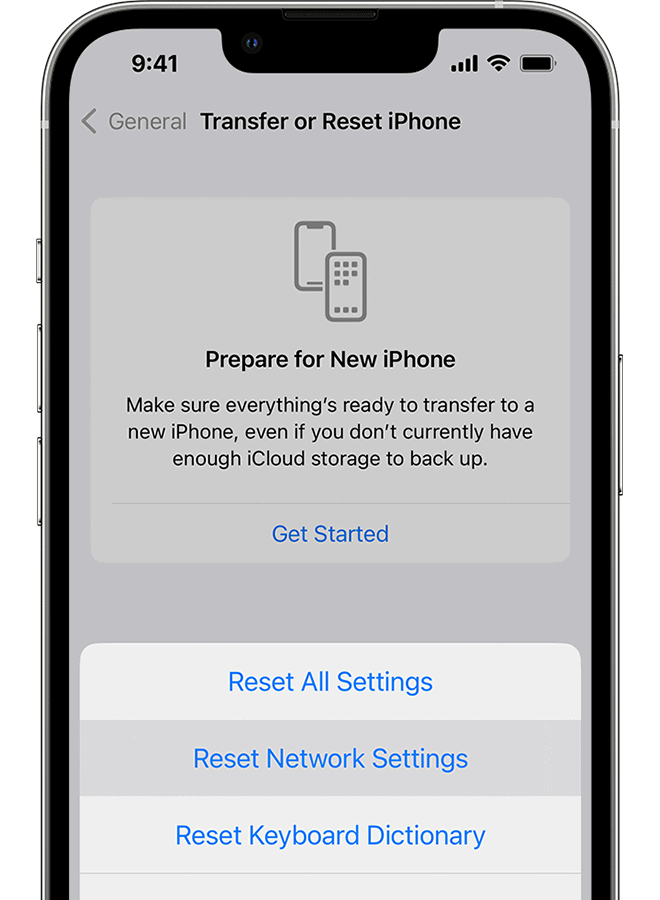
To reset carrier settings, go to Settings > General > Reset >Reset Network Settingson your iPhone. You’ll need to re-enter your Wi-Fi passwords afterward, but this small inconvenience is often worth the potential improvements in cellular performance.
Carrier settings updates are important for optimizing iPhone performance on a carrier’s network. Resetting these settings might help with issues, but it’s advisable to try other troubleshooting steps first and consult your carrier for persistent network problems. U.S. mobile users average 14.7 GB of data usage monthly, so managing data is crucial to avoid overage charges. International data roaming can be costly, so checking with your carrier about plans or getting a local SIM card is recommended. Cellular data options can be found in Settings. For questions about settings or data usage, contact your carrier’s customer support for assistance.
If you’re using iOS or iPadOS 15 or later, tap Settings > General > Transfer or Reset [Device] > Reset > Reset Network Settings.
If you’re using iOS or iPadOS 14 or earlier, tap Settings > General > Reset > Reset Network Settings.
This also resets Wi-Fi networks and passwords, cellular settings, and VPN and APN settings that you’ve used before.
Understanding and Using Carrier Settings on Your iPhone
What are Carrier Settings?
Carrier settings are small updates from your wireless carrier (like Verizon, AT&T, or T-Mobile). These updates improve your iPhone’s ability to connect to the cellular network. They can include changes to:
These updates are different from iOS updates. iOS updates change your phone’s operating system. Carrier settings updates focus specifically on network connectivity.
How to Check for and Update Carrier Settings
Your iPhone usually updates carrier settings automatically. If an update is available, you’ll see a pop-up message. you’re able to also check for updates manually:
If you don’t see an update, your settings are current.
When to Reset Carrier Settings
Resetting your carrier settings can fix some network problems. You might try this if you have:
Think of it as a restart for your network connection. It can resolve minor software glitches.
How to Reset Carrier Settings
Resetting carrier settings will erase all your saved cellular settings. This includes Wi-Fi passwords and VPN settings. Make sure you know your Wi-Fi passwords before you do this.
Your iPhone will restart. You’ll need to reconnect to Wi-Fi networks and set up any VPNs again.
Pros and Cons of Resetting Carrier Settings
When Not to Reset Carrier Settings
If your carrier is experiencing a widespread outage, resetting your settings won’t help. Check your carrier’s website or social media for outage information. Also, if you know the issue is with your phone’s hardware (like a damaged antenna), resetting settings won’t fix it.
Alternative Solutions
Before resetting carrier settings, try these simpler steps:
Managing Data Usage on Your iPhone
Since carrier settings affect how your phone uses cellular data, it’s a good time to talk about managing your data usage. Many people are on limited data plans, so keeping track of data use is important. you’re able to check how much data you’ve used in Settings > Cellular. This section shows data use for each app. You can also turn off cellular data for specific apps. Another useful feature is Low Data Mode, found in Settings > Cellular > Cellular Data Options. This mode helps reduce data use by limiting background activity.
Understanding Carrier Settings on Your iPhone
Carrier settings control how your iPhone connects tocellular networks. These settings affect your device’s ability to make calls, send texts, and use mobile data.
What Are Carrier Settings
Carrier settings are small files on your iPhone that contain important network information. They include details about your cellular provider’s voice and data networks. These files tell your iPhone how to connect to cell towers and use various network features.
Your carrier settings determine:
When youinsert a new SIM cardor set up an eSIM, your iPhone downloads the appropriate carrier settings. This ensures your device works correctly with your cellular plan.
The Importance of Carrier Settings Updates
Carrier settings updates improve your iPhone’s network performance and capabilities. These updates fix bugs, enhance connectivity, and add new features. You’ll usually see a notification when an update is available.
Benefits of keeping carrier settings up-to-date:
Tocheck for carrier settings updates:
If an update is available, you’ll see a prompt to install it. Always install these updates to ensure optimal iPhone performance on your cellular network.
Resetting Your iPhone’s Carrier Settings
Resetting carrier settings can resolve connectivity issues and improve network performance. This process updates your iPhone’s communication protocols with your cellular provider.
How to Reset Network Settings
To reset your iPhone’s network settings:
Enter your passcode when prompted. Your iPhone will restart after the reset. Remember to reconnect toWi-Fi networksas this process erases saved passwords.
This reset can fix issues likeno serviceor poor signal strength. It also resets Wi-Fi networks andBluetooth connections.
Manually Updating Carrier Settings
Your iPhone usually updates carrier settings automatically. To check for updates manually:
If no update appears, your settings are current. These updates can improve network connectivity and enable new features likeWi-Fi calling.
Troubleshooting Common Carrier Settings Issues
If you experience persistentcellular issues:
For eSIM users, try removing and re-adding your cellular plan. If problems continue, contact your carrier or visit an Apple Store for support.
These steps often resolve most carrier-related problems without needing professional assistance.
Additional iPhone Network and Carrier Features
iPhones offer several advanced network and carrier features to enhance connectivity and manage data usage. These options allow you to customize your cellular experience and optimize performance.
Understanding Access Point Names (APNs)
APNs are crucial for connecting your iPhone to mobile data networks. They act as gateways between your device and the internet. Most carriers set up APNs automatically but you may need to configure them manually sometimes.
To view or edit APN settings:
Be cautious when changing these settings. Incorrect values can disrupt your data connection. If you’re unsure contact your carrier for the correct APN details.
Some carriers use different APNs for specific services like multimedia messaging (MMS). You might need separate configurations for these.
Wi-Fi Calling and Tethering Options
Wi-Fi Callinglets you make calls over Wi-Fi networks. This feature is useful in areas with poor cellular coverage. To enable Wi-Fi Calling:
Tethering orPersonal Hotspotallows you to share your iPhone’s internet connection with other devices. To set up tethering:
You canchange your Personal Hotspot passwordfor better security. Be mindful of data usage when tethering as it can quickly deplete your plan.
Data Roaming and eSIM Management
Data roaming lets you use mobile data while traveling abroad. To control roaming:
Be careful with this setting as roaming charges can be expensive. Consider using local SIMs or eSIMs when traveling.
eSIMs allow you to use multiple cellular plans without physical SIM cards. To add an eSIM:
you may store multiple eSIMs but only use one at a time. This flexibility is great for separating work and personal lines or managing travel plans.
Getting Help and Contacting Your Carrier
If you’re having trouble with your iPhone’s cellular connection,contacting your carriercan often resolve the issue. Your carrier’s support team can help with network-related problems andcarrier settings updates.
Before reaching out, gather the following information:
To find this info, go to Settings > General > About on your iPhone.
Here’s a quick guide for contacting major US carriers:
When you call, explain your issue clearly. Mention any recent changes like installing anew SIM cardor switching to 5G. Ask about carrier settings updates that might fix your problem.
If your iPhone shows “SOS” instead of a carrier name, it means you’re not connected to a cellular network. Try restarting your device or checking for a carrier settings update.
Remember, your carrier can also help with activating new SIM cards and troubleshooting 5G connectivity issues on compatible iOS devices.
Frequently Asked Questions
iPhone users often encounter issues with carrier settings and network connectivity. Knowing how toupdate settingsandtroubleshoot problemscan greatly improve your device’s performance.
How can one manually update the carrier settings on an iPhone?
To manually update carrier settings on your iPhone, go to Settings > General > About. If an update is available, you’ll see a prompt to install it. Make sure your iPhone is connected to Wi-Fi or cellular data before starting the update.
Why does the iPhone carrier settings update notification keep appearing?
The notification may persist if the update wasn’t completed successfully. Try restarting your iPhone and attempting the update again. If it continues,contact your carrierfor assistance.
What are the steps to reset the network settings on an iPhone running iOS 17?
To reset network settings on iOS 17, go to Settings > General > Transfer or Reset iPhone > Reset > Reset Network Settings. Enter your passcode if prompted. This action willerase all network settingsand restore them to factory defaults.
What should be expected after resetting network settings on an iPhone?
After resetting, your Wi-Fi passwords will be erased. You’ll need to reconnect to Wi-Fi networks and re-pair Bluetooth devices. Cellular settings will revert to defaults, which may resolve connectivity issues.
How can an iPhone user refresh their carrier settings?
To refresh carrier settings, ensure your iPhone is connected to Wi-Fi or cellular data. Go to Settings > General > About. If an update is available, follow the on-screen instructions toinstall it.
What implications does resetting network settings have for connectivity and data on an iPhone?
Resetting network settings can fix many connectivity issues. It will remove saved Wi-Fi networks and passwords, reset cellular settings, and clear VPN configurations. Your personal data remains intact, but you may need to reconfigure some network-related settings.
