Staying connected through notifications is essential, but there are moments when uninterrupted focus is key—whether during a meeting, at night, or simply for some quiet time. Fortunately, iPhones offer several ways to manage and silence notifications, ensuring you stay in control of your digital life.
Using Do Not Disturb and Focus Modes
Apple’sDo Not DisturbandFocusfeatures allow users to customize when and how notifications reach them. These modes can be set to silence calls, messages, and app alerts while still allowing important contacts or apps to break through when needed. Whether you want to mute notifications during work hours or set up a bedtime routine, these settings make it easy to fine-tune your preferences.
Silencing Notifications from Specific Contacts or Apps
If you only need to mute certain contacts or apps, iOS lets you silence alerts on a case-by-case basis. You can do this directly from the Messages app for individual conversations or throughSettings > Notificationsto control alerts for specific apps. This customization ensures you aren’t constantly disturbed by unimportant notifications while still staying accessible to key contacts.
Automating Silence with Scheduled & Location-Based Settings
iPhones also offerscheduled quiet timesandlocation-based silencingfor added convenience. you’re able to set notifications to mute automatically at specific hours, such as during sleep, or activate Focus modes when arriving at work or school. This hands-free approach ensures your phone adapts to your lifestyle without requiring manual adjustments.
Enabling Emergency Contacts & Siri Assistance
To avoid missing urgent calls, users can designateemergency contactsthat bypass silencing rules. Additionally, Siri can help manage Do Not Disturb settings with simple voice commands like“Turn on Do Not Disturb until tomorrow morning.”This provides an effortless way to control notifications without navigating through settings.
By leveraging these iPhone features, you can create apersonalized, distraction-free experiencewhile still remaining accessible when necessary. Whether for work, sleep, or personal time, your iPhone’s notification settings put you in control.
Ways To Silence iPhone Notifications
There are several ways to silence notifications on your iPhone, depending on whether you want to silence all notifications, notifications from a specific app, or just the sounds of notifications.
1. Use Do Not Disturb:
2. Silence notifications for a specific app:
- Silence notification sounds but still see notifications:
4. Mute a specific conversation in Messages:
- Use Focus modes (iOS 15 and later):
6. Use the Ring/Silent switch:
7. Schedule a notification summary:
Additional tips:
Key Takeaways
Understanding iPhone’s Notification System
Notifications keep users up to date with the activities in their apps. iPhone’s notification system allows users to manage these alerts effectively.
Notification Types and Alerts
iPhones offer three types of notifications:sounds,badges, andbanners.Soundsalert users with an audible note, whilebadgesdisplay a red marker on the app icon.Bannersappear at the top of the screen. Users can choose to see banners just once or have them stay on-screen until dismissed.
Managing Notifications via Settings
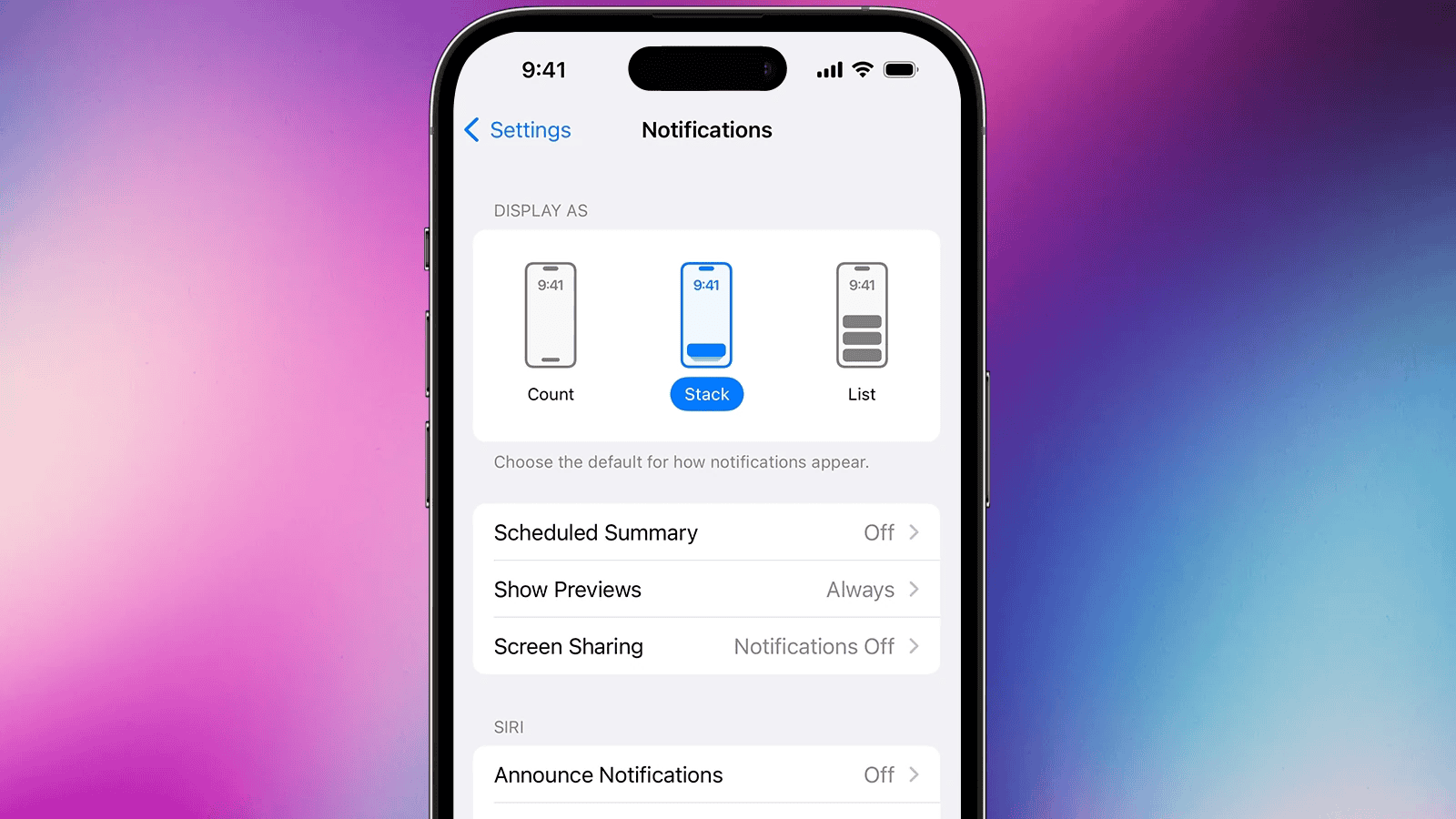
Users can adjust their iPhone notifications in theSettingsapp. They can choose which apps send notifications and how those notifications appear. Options include turning off notifications altogether or selecting specific types like sounds or badges.
Focus Modes and Do Not Disturb
Focus modeslet users silence notifications for a period. They can set up specific scenarios like work or sleep.Do Not Disturbis a type of Focus mode. It stops most notifications. However, users can allow calls from certain people in emergency cases.
Lock Screen and Notification Center
Notifications appear on the lock screen for easy viewing. Swiping into the Notification Center shows a list of alerts. Here users can interact with the notifications. For example, they can open the app related to the alert or clear notifications they no longer need.
Customizing Notification Experiences
iPhone users have the power to manage alerts to help stay focused and keep interruptions to a minimum. This guide leads through the steps to manage notifications on a personal level, covering app settings, contact preferences, and automation features.
App-specific Notification Settings
To change settings for individual apps, go toSettings, tapNotifications, then select the app you want to adjust. Here, you can turn notifications on or off, decide whether they make a sound, show on the lock screen, or pop up as banners. Users can also group notifications by thread for apps like WhatsApp.
Silencing Notifications for Specific Contacts and Apps
InSettings, tapFocus. Choose or create a Focus mode like Do Not Disturb, Work, or Sleep. Set rules for allowing alerts from people and apps that are most important. For instance, one might allow calls from favorites or repeated calls in case of emergency, or silence specific contacts by toggling theHide Alertsoption in Messages.
Scheduling and Automation
Within the same Focus settings, you can schedule when to mute notifications. This can be based on time, location, or even what you’re currently doing. Automation features enable the iPhone to switch to specific Focus modes without manual input, ensuring that notifications do not disrupt important activities or rest periods.
Advanced Features and Tips
Some lesser-known but useful settings include theScheduled Summary, which groups notifications and delivers them at chosen times to avoid constant distractions. Also, theShare Focus Statuslets others know you’re silencing notifications. Those trying to quickly silence their phone can use the ring/silent switch or enable Do Not Disturb from the Control Center. Siri can also help manage these settings with voice commands.